
Ava Robotics + Webex
Ava Teleport with Webex
The Ava Robot acts as a mobile participant, interacting with others more naturally and engagingly. With powerful features such as collision avoidance and side-view cameras, and controls for moving and looking around including camera zoom, Ava is the most immersive expression of collaboration available today.
The screen also clearly displays participants, documents, and presentations, ensuring everyone can participate and contribute to the meeting. This allows for a more immersive and interactive experience, as participants can easily view and engage with the Ava Robot's view and content during virtual meetings.


Every User can use Ava with Webex using the Ava Teleport App for Web or iOS:
Use Ava Web or iOS Apps alongside Webex:
-
All you need is your Webex meeting
-
Launch the Ava app and select the site you want to visit and the location start.
-
Select "Enter video address", paste in the video address of the meeting as shown in the Webex invite.
-
Save Webex personal room in your profile. You can do this in Settings for the app.

Steps to Connect Webex Split Video
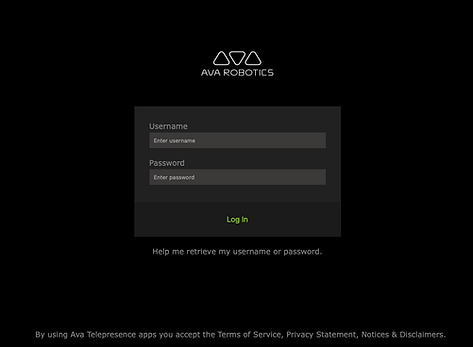
1
Step 1: Sign into Ava App with your username and password

2
Step 2: Select "Request Teleport Session"

3

4
Step 4: Enter your video address for the meeting, followed by period and the passcode (if applicable). Press OK and start the session.
Step 3: Select "Enter video address"
Still Need Help?
For more information on how a to set up Ava to call into a conferencing app like Webex, see User Guides at https://www.avarobotics.com/documents